
Set your campaign schedule
Choose the days, hours, timezone and date range your campaign sends in.
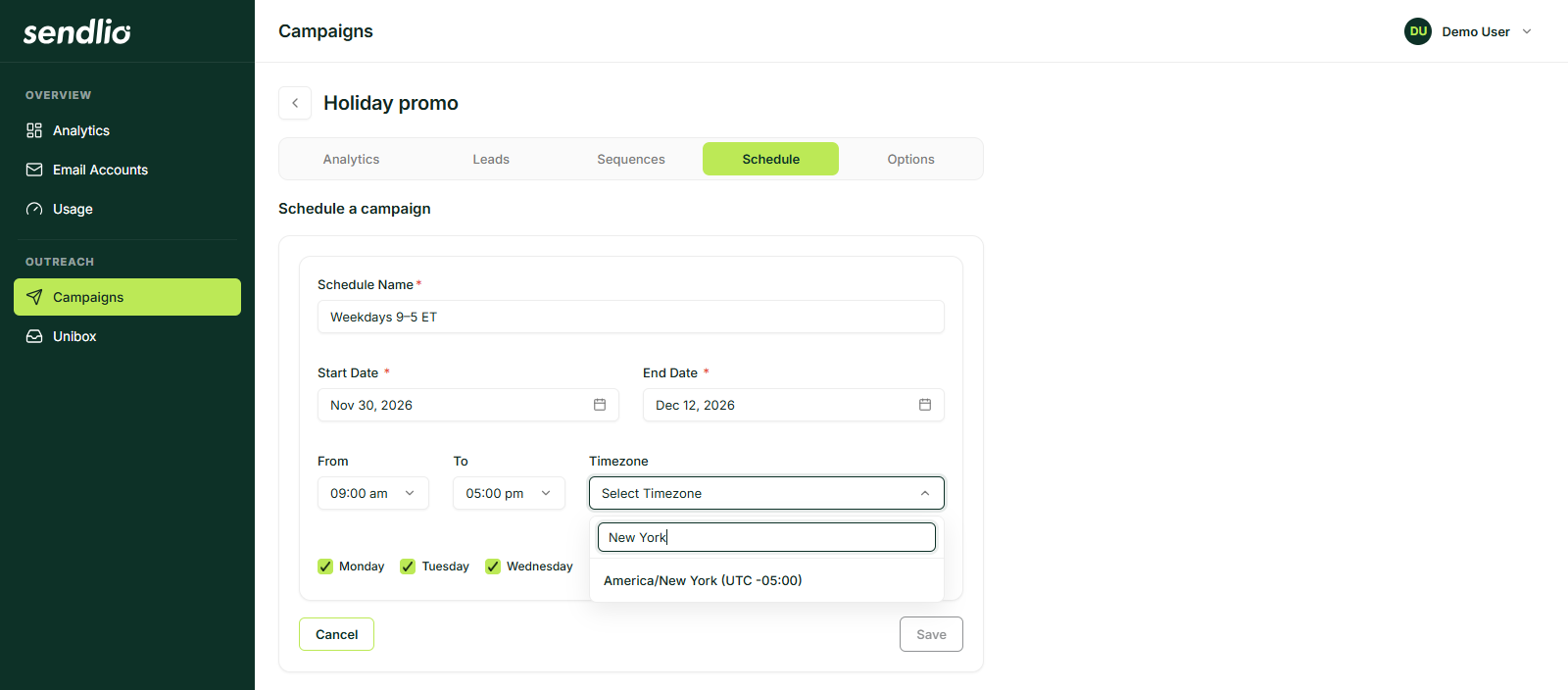
- Open the Schedule tab.
- Enter a Schedule Name (e.g. “US business hours”).
- Pick a Start Date and End Date.
- Choose From and To hours.
- Choose a Timezone — type to search, e.g. “New York”.
- Tick the days to send on, then click Save. You’ll see “Schedule created!”.
Tip
Use your leads’ timezone, not yours, and normal business hours on weekdays (e.g. 9 AM–5 PM, Monday–Friday).
How the schedule works
- Emails are sent only between From and To, on ticked days, between the start and end dates.
- A window that ends after midnight (e.g. From 10 PM, To 2 AM) is fine.
- Follow-ups that become due outside the window wait for the next allowed time.
- A campaign uses one schedule. Edit it with the pencil icon under Active Schedules.
Important
When the end date passes, the campaign can’t be started again until you move the end date to today or later (“Please re-schedule campaign date range present or future”).
Frequently asked questions
Why is my active campaign not sending right now?
Check the current time in the schedule’s timezone is inside the window and today is ticked. Also check the daily limits and your plan’s email quota.