
Troubleshoot warmup errors
Read the error log, understand each message, and get warmup running again.
When Sendlio can’t send or read warmup emails for an inbox, it stops warmup for that inbox and shows a red flame icon (“Warmup has errors”) next to the email address. A green flame (“Warmup is active”) means all is well.
Open the error log
- Go to Email Accounts.
- Click the red flame icon next to the email address.
- The Error log shows each problem with its Type, Reason, Message and Time.
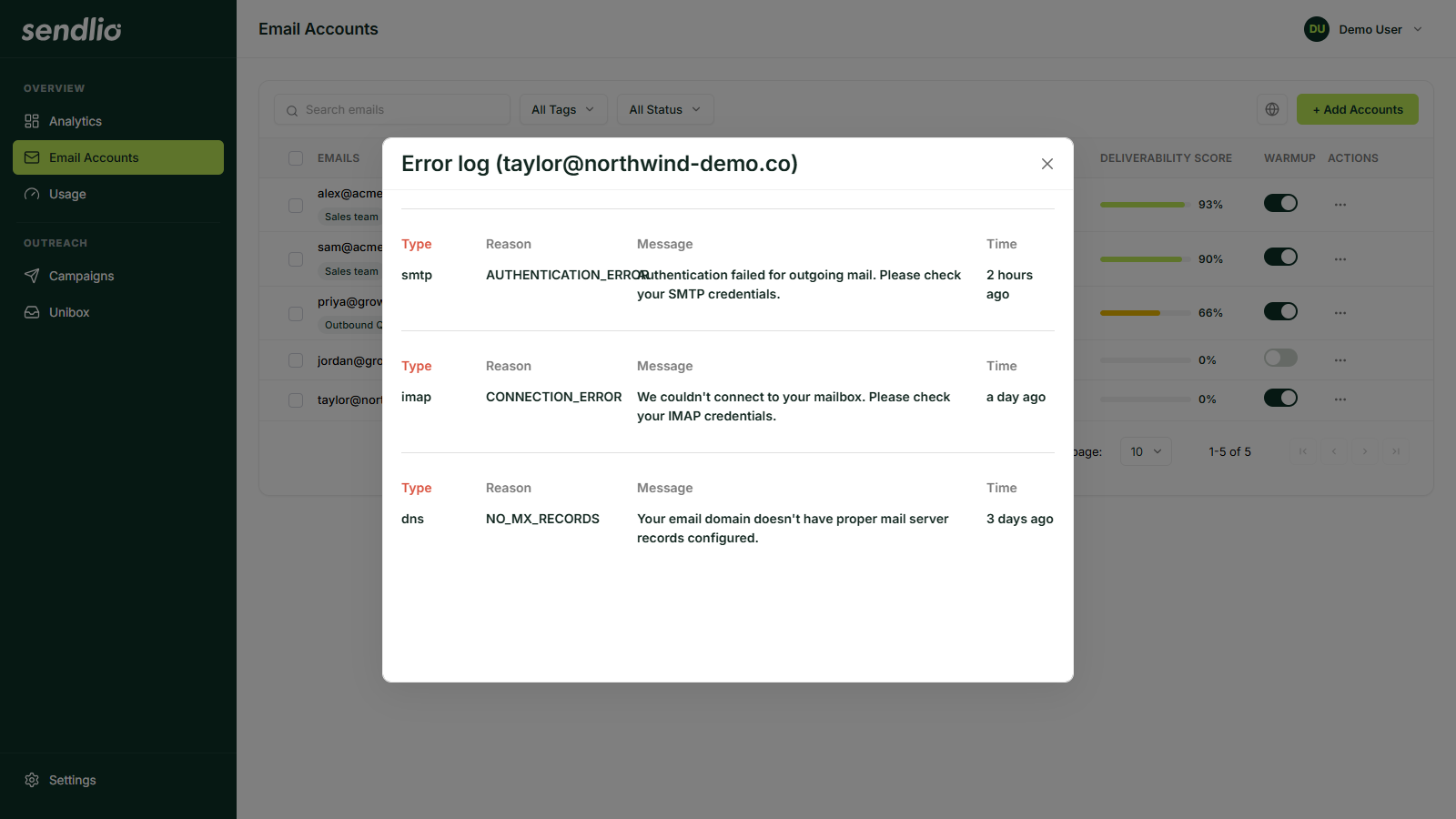
What each message means
| Message | How to fix it |
|---|---|
| Authentication failed for outgoing mail. Please check your SMTP credentials. | The password changed or expired, or an app password is needed. Reconnect the account with the correct details. |
| Authentication failed for incoming mail. Please check your IMAP credentials. | Same as above, for IMAP. Make sure IMAP is turned on in your provider’s settings. |
| We couldn’t connect to your outgoing mail server. Please check your SMTP settings. | Check the SMTP host and port (usually 465 or 587). |
| We couldn’t connect to your mailbox. Please check your IMAP credentials. | Check the IMAP host and port (usually 993). |
| Connection to … timed out. Please try again later. | Usually temporary on the provider’s side. If it repeats for a day, check the host and port. |
| Your email domain appears to be invalid or expired. | Check that your domain is renewed and its DNS is working. |
| Your email domain doesn’t have proper mail server records configured. | Add the MX record for your domain, then click Verify DNS. |
Get warmup running again
- Fix the cause shown in the error log.
- Open the Actions menu (⋯) on the row and click Reconnect Account. Enter the correct details and click Connect.
- Turn the Warmup switch off and then on again. This clears the error status and restarts warmup.
Other common problems
| Problem | Fix |
|---|---|
| “Assign a warmup tag to this account before enabling warmup.” | Add a tag in the Warmup tab, or for many inboxes with Bulk Edit. |
| Switch is on, but no warmup emails are sent | Check the inbox isn’t Paused (Actions ⋯ → Activate Account). New inboxes start in the next 8 AM–6 PM IST window. |
| Red “SPF / DKIM / DMARC / MX not found” badges | Add the missing DNS record, wait up to 24 hours, click Verify DNS. |
| Deliverability score stays red after 2 weeks | Lower the daily limit to 10, fix DNS, and check the domain isn’t on a blocklist. Contact support if it doesn’t improve. |
Tip
Gmail and Google Workspace: if you use 2-step verification, connect with an App Password, not your normal password.
Frequently asked questions
Still stuck?
Contact us from the contact page with the email address and a screenshot of the error log.