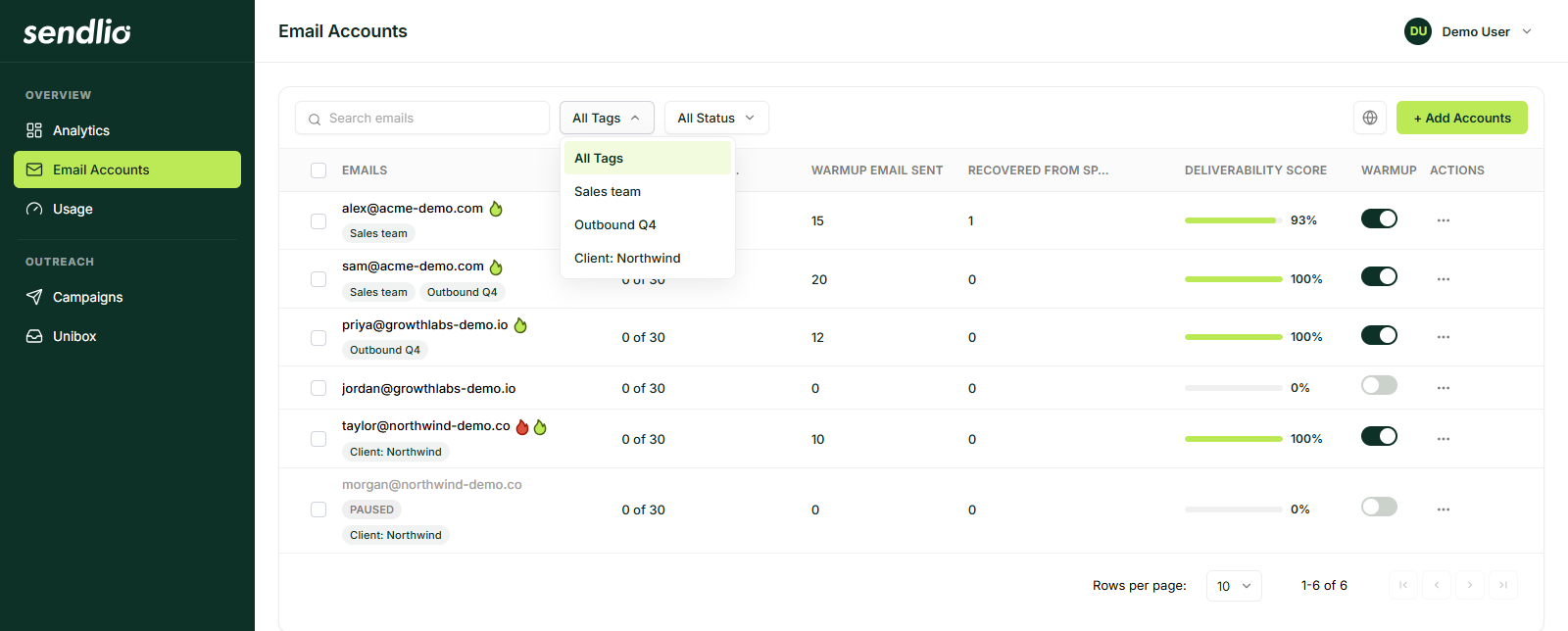
Find your way around the Email Accounts page
What each column, icon, filter and button on the Email Accounts page does.
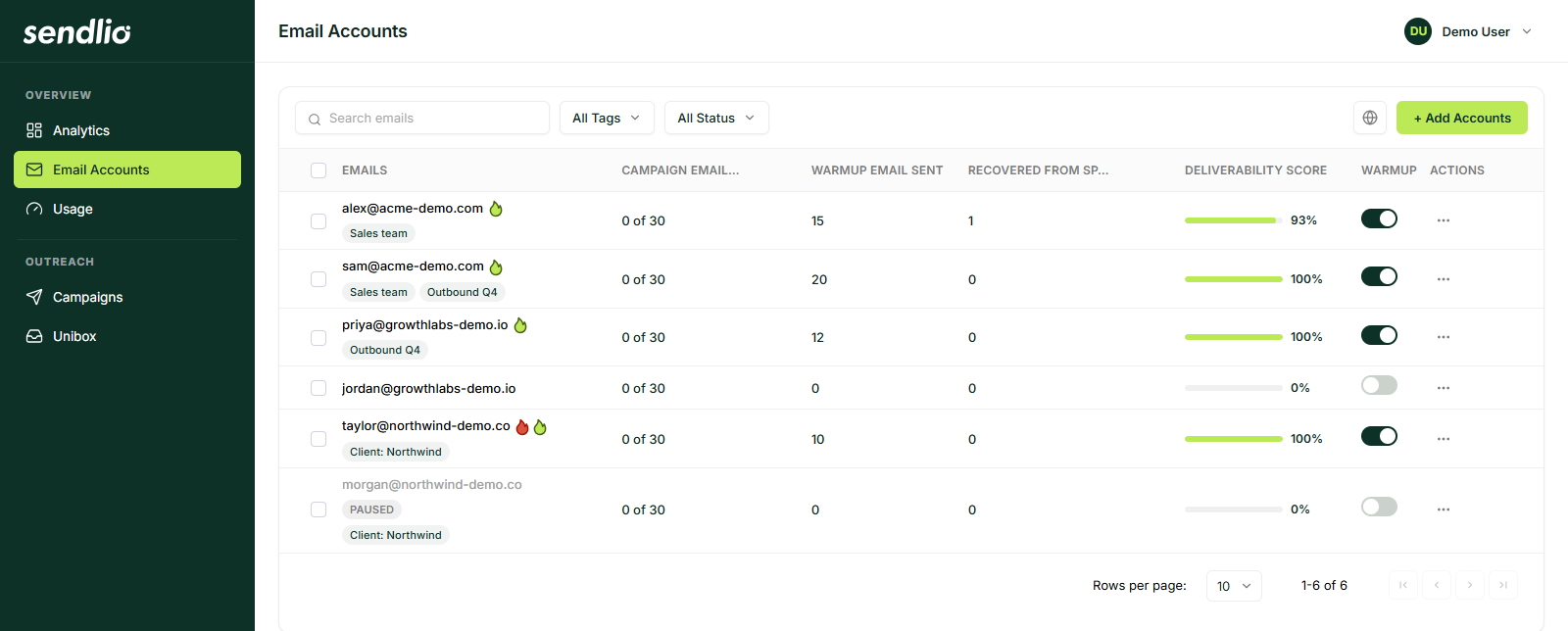
Toolbar
| Control | What it does |
|---|---|
| Search emails | Find an inbox by address. |
| All Tags | Show only inboxes with the tags you pick. |
| All Status | Show Active, Paused, Warmup Active, Warmup Paused, or Has Error (DNS problems) inboxes. |
| Globe icon (Verify DNS) | Check SPF, DKIM, DMARC and MX for your inboxes. See Check DNS records. |
| + Add Accounts | Connect a new inbox or import a CSV. |
When you tick one or more rows, the right side of the toolbar changes: you’ll see how many are selected, plus Bulk Edit (pencil), Pause All, Resume All and a ⋯ menu with Bulk Edit, Download CSV and Delete.
Columns
| Column | Meaning |
|---|---|
| Emails | The address, its tags, a “Paused” label if paused, and red badges for missing DNS records. |
| Campaign email sent | Campaign emails sent today, out of the account’s Daily Campaign limit (e.g. “12 of 30”). |
| Warmup email sent / Recovered from spam / Deliverability score | Today’s warmup activity. See Track your warmup progress. |
| Warmup | Switch warmup on or off. |
| Actions (⋯) | Pause or activate, reconnect, or remove the account. |
Icons next to the address
- Green flame — warmup is active.
- Red flame — warmup has errors. Click it to open the error log.
- Grey address with “Paused” — the account is paused and sends nothing (no campaigns, no warmup).
Open an account
Click any email address to open its window with four tabs: Overview, General, Campaign and Warmup.