
Check your domain’s SPF, DKIM, DMARC and MX records
Use Verify DNS to find missing records that send your emails to spam.
Email providers check four DNS records on your domain before trusting your emails. Missing records are one of the most common reasons for landing in spam.
| Record | What it does |
|---|---|
| MX | Tells the world which server receives mail for your domain. |
| SPF | Lists the servers allowed to send email for your domain. |
| DKIM | Adds a digital signature that proves the email wasn’t changed. |
| DMARC | Tells providers what to do with emails that fail SPF or DKIM. |
Check your records
- Go to Email Accounts.
- Click the globe icon (Verify DNS) next to + Add Accounts.
- Look under each email address. A red badge like SPF not found means that record is missing.
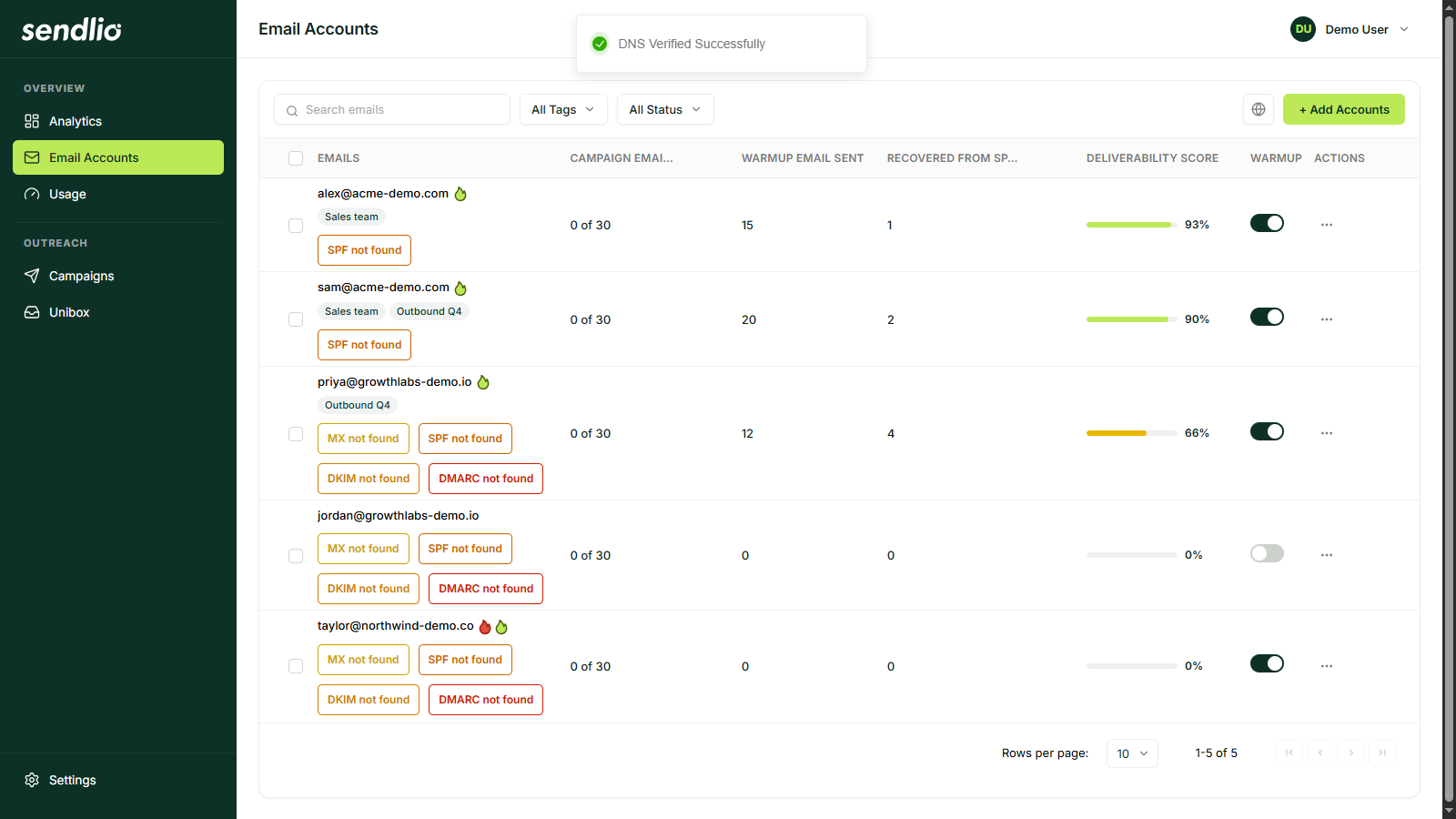
Note
The badges disappear after about 30 seconds, and “DNS Verified Successfully” appears even when something is missing — so check the badges right after you click.
Fix a missing record
- Get the exact record values from your email provider’s help pages (Google Workspace, Microsoft 365, Zoho…).
- Add them in the DNS settings where you bought your domain (GoDaddy, Namecheap, Cloudflare…).
- Wait up to 24 hours, then click Verify DNS again.
Tip
A safe first DMARC record is
v=DMARC1; p=none; on the host _dmarc. Tighten it later once everything passes.Note
Sendlio looks for DKIM under the usual selector names for Google, Microsoft and Zoho. If you use a custom selector, DKIM may show as missing even when it’s set up correctly.