
How to connect an email account
Add one inbox from any provider (Google, Microsoft, Zoho, or any IMAP/SMTP mailbox).
On this page
Sendlio connects to your inbox with IMAP (to read replies) and SMTP (to send). It works with any provider. Have your IMAP and SMTP details ready — see IMAP and SMTP settings for popular providers.
Step 1: Choose how to add
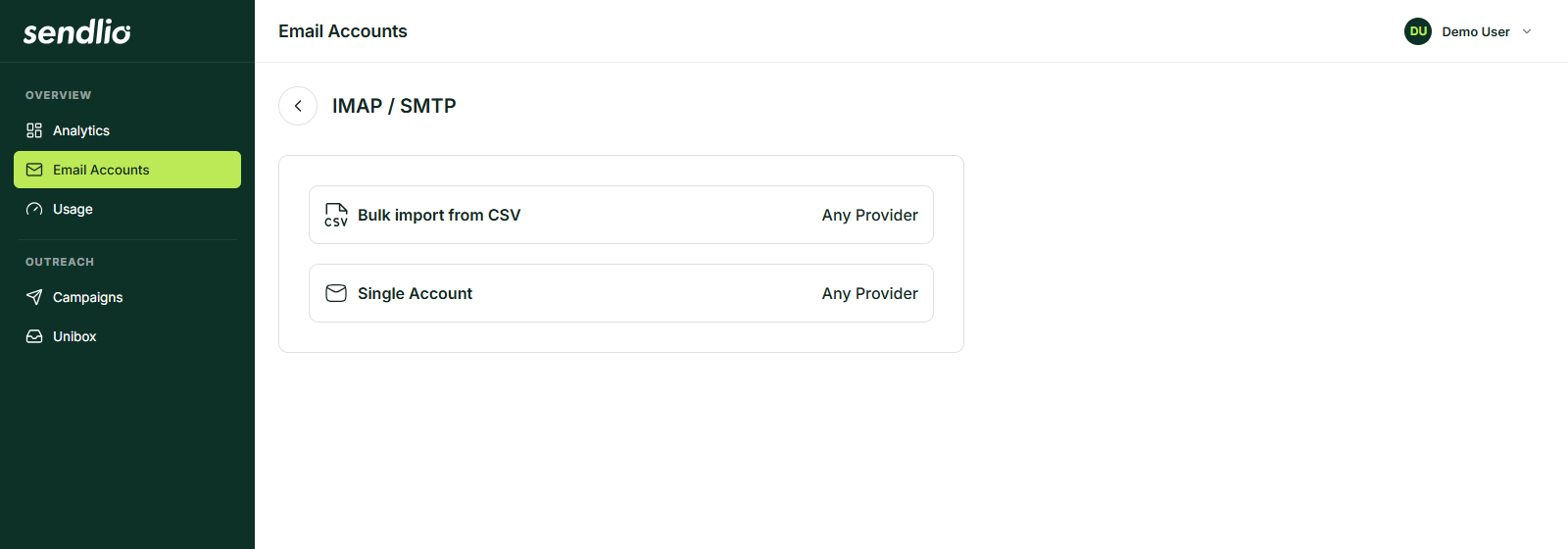
- Go to Email Accounts and click + Add Accounts.
- Click Single Account. (To add many at once, see Import from CSV.)
Step 2: Enter your name and email
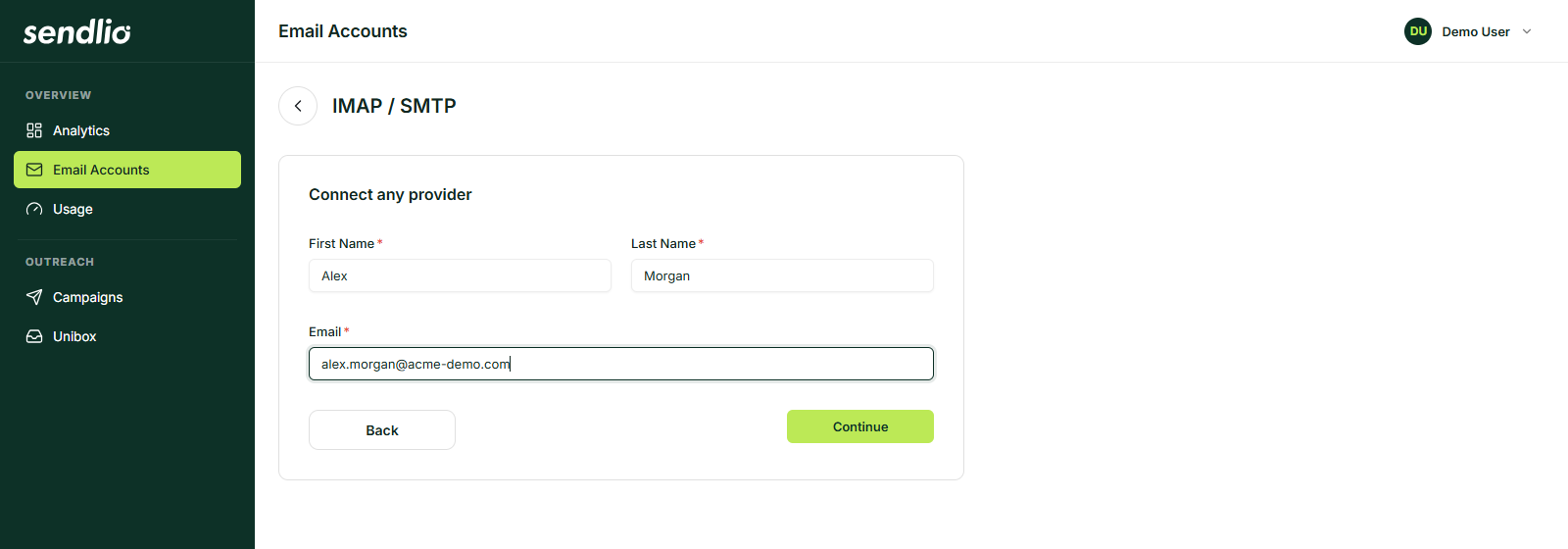
On Connect any provider, enter First Name, Last Name and the Email address, then click Continue.
Step 3: Connect IMAP
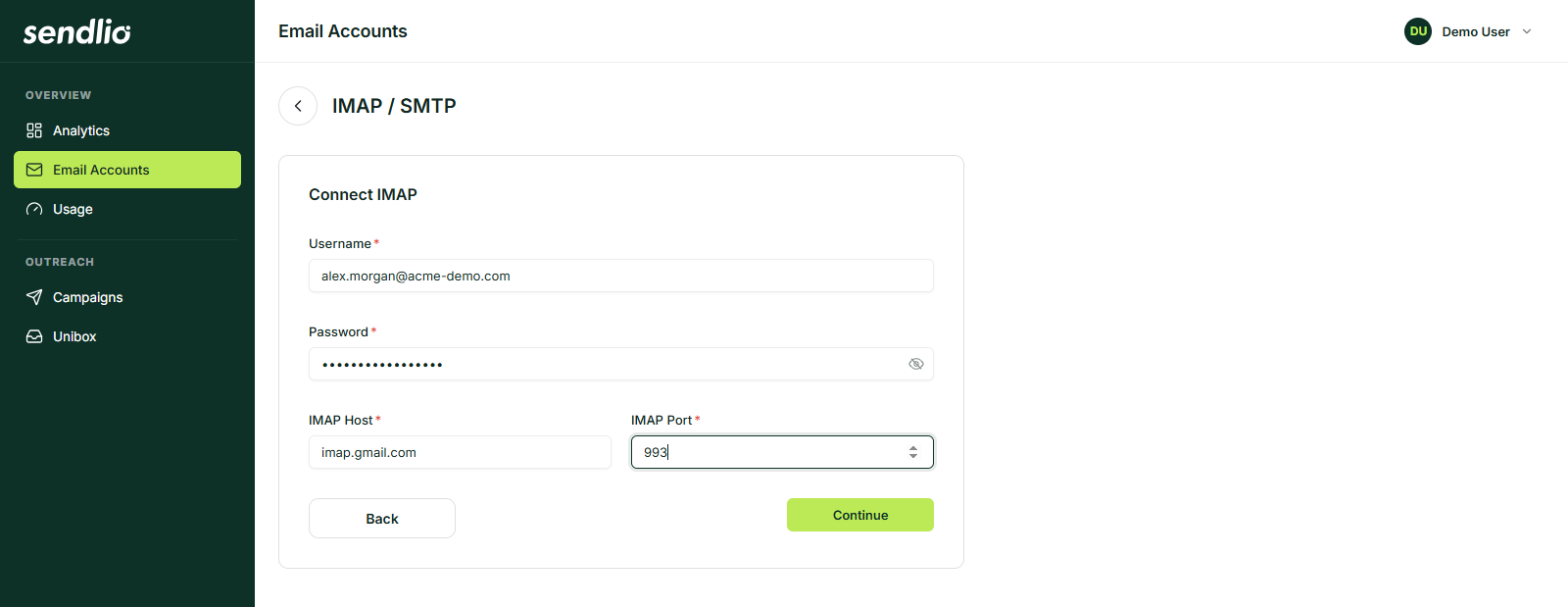
- Enter Username (usually the full email address) and Password (often an app password).
- Enter IMAP Host and IMAP Port (almost always
993). - Click Continue. Sendlio tests the connection: Verifying IMAP connection… then IMAP Connection Successful.
Step 4: Connect SMTP
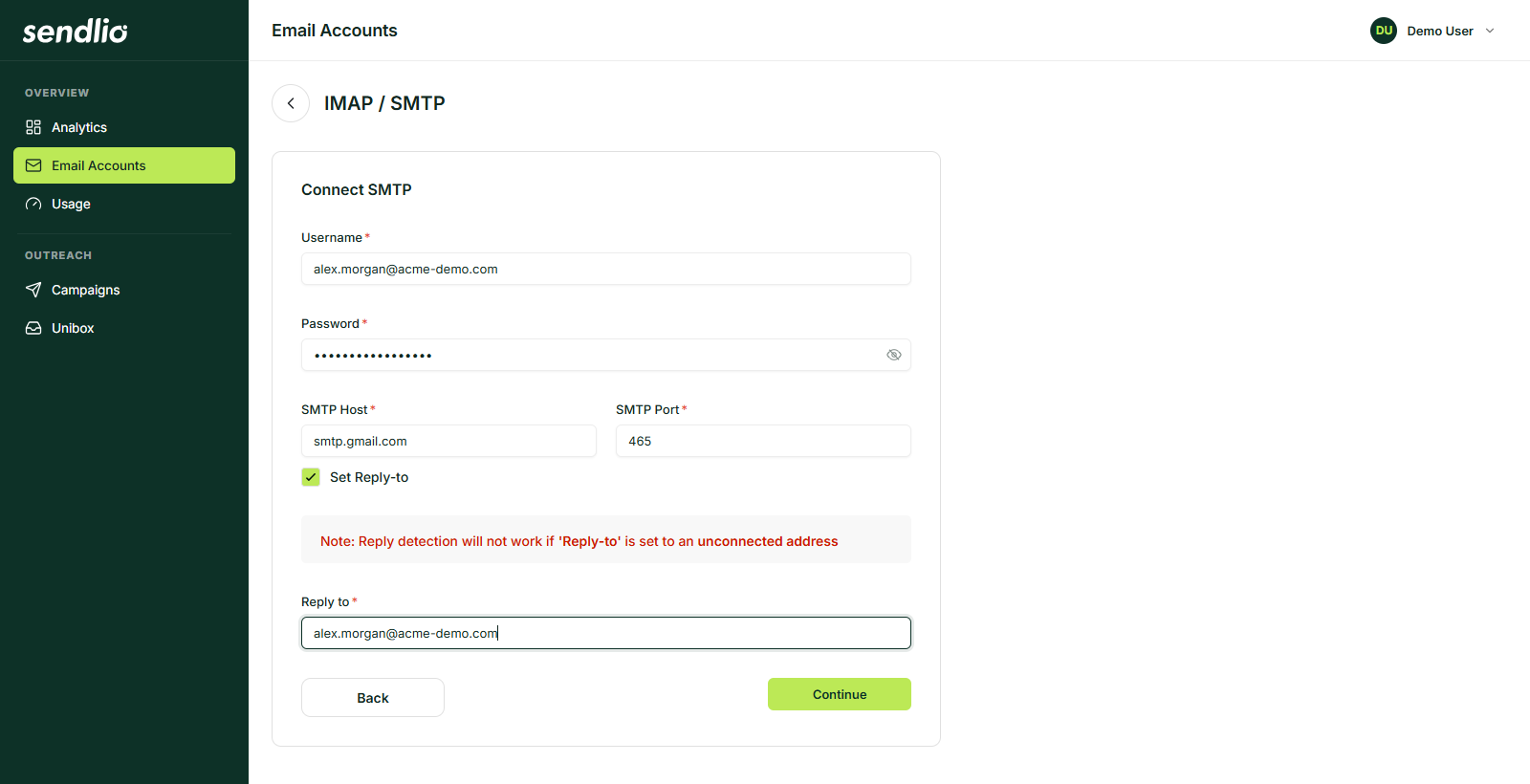
- The username is filled in for you. Enter the Password, SMTP Host and SMTP Port (
465or587). - Click Continue. After SMTP Connection Successful you’ll see Account added successfully and return to the Email Accounts page.
Important
Set Reply-to is saved with the account, but it is not added to outgoing emails yet. Replies go to the address you send from.
What to do next
- Set a Daily Campaign limit — new accounts start without one. See Campaign settings for an account.
- Check your domain’s DNS. See Check SPF, DKIM, DMARC and MX.
- Turn on warmup. See How to turn on email warmup.
Frequently asked questions
It says “Email Already Exist.”
That address is already connected to Sendlio. Find it on the Email Accounts page and use Reconnect Account if its details changed.
Is my password safe?
Passwords are encrypted before they are stored. Use an app password where your provider offers one, so you can revoke it any time.