
Reply to a lead from the Unibox
Answer without leaving Sendlio — sent from the inbox that received the reply.
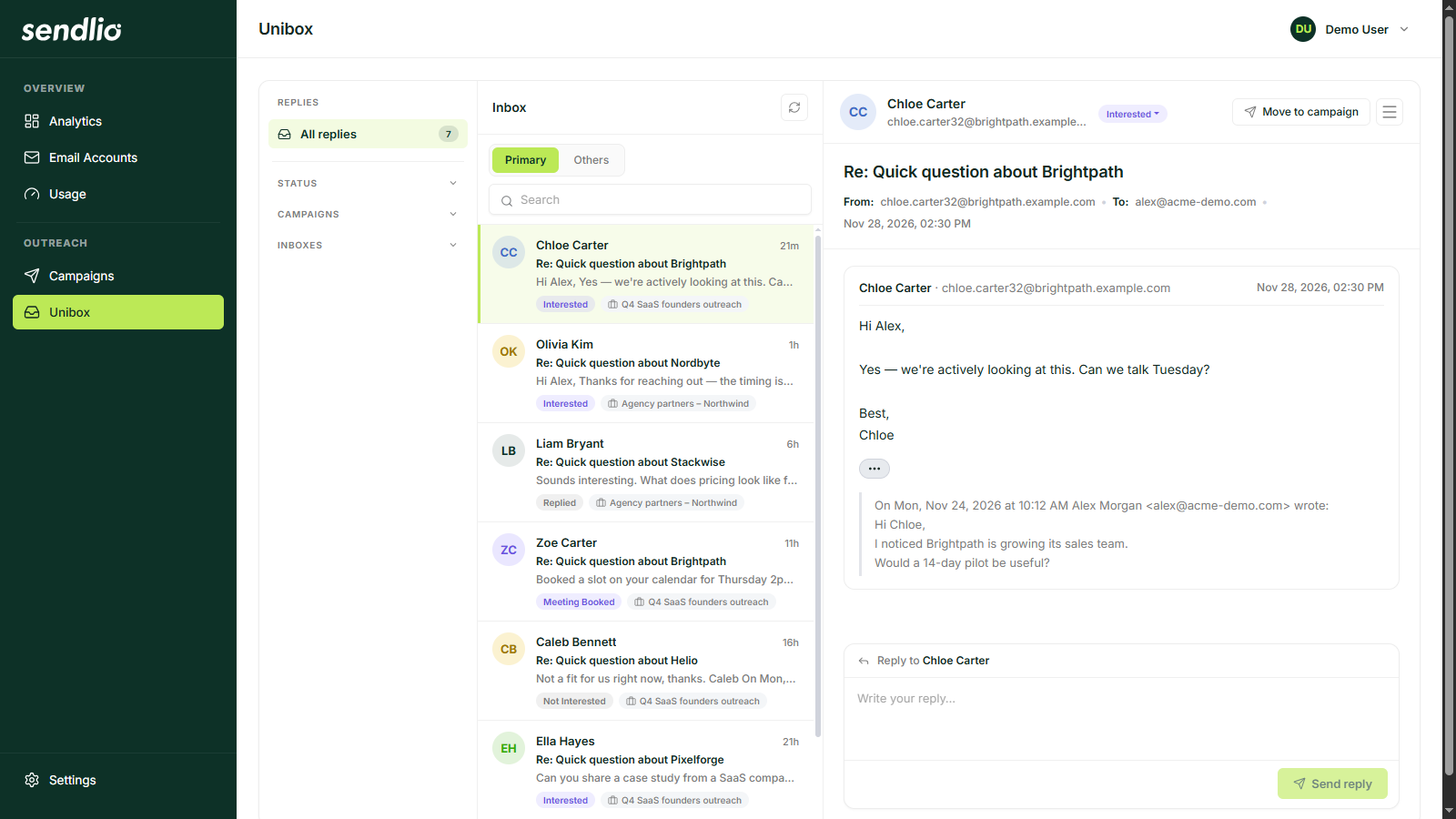
- Click a reply in the list to open it.
- Read it. Click … to show or hide the quoted earlier emails.
- Type your answer in the box under Reply to {name}.
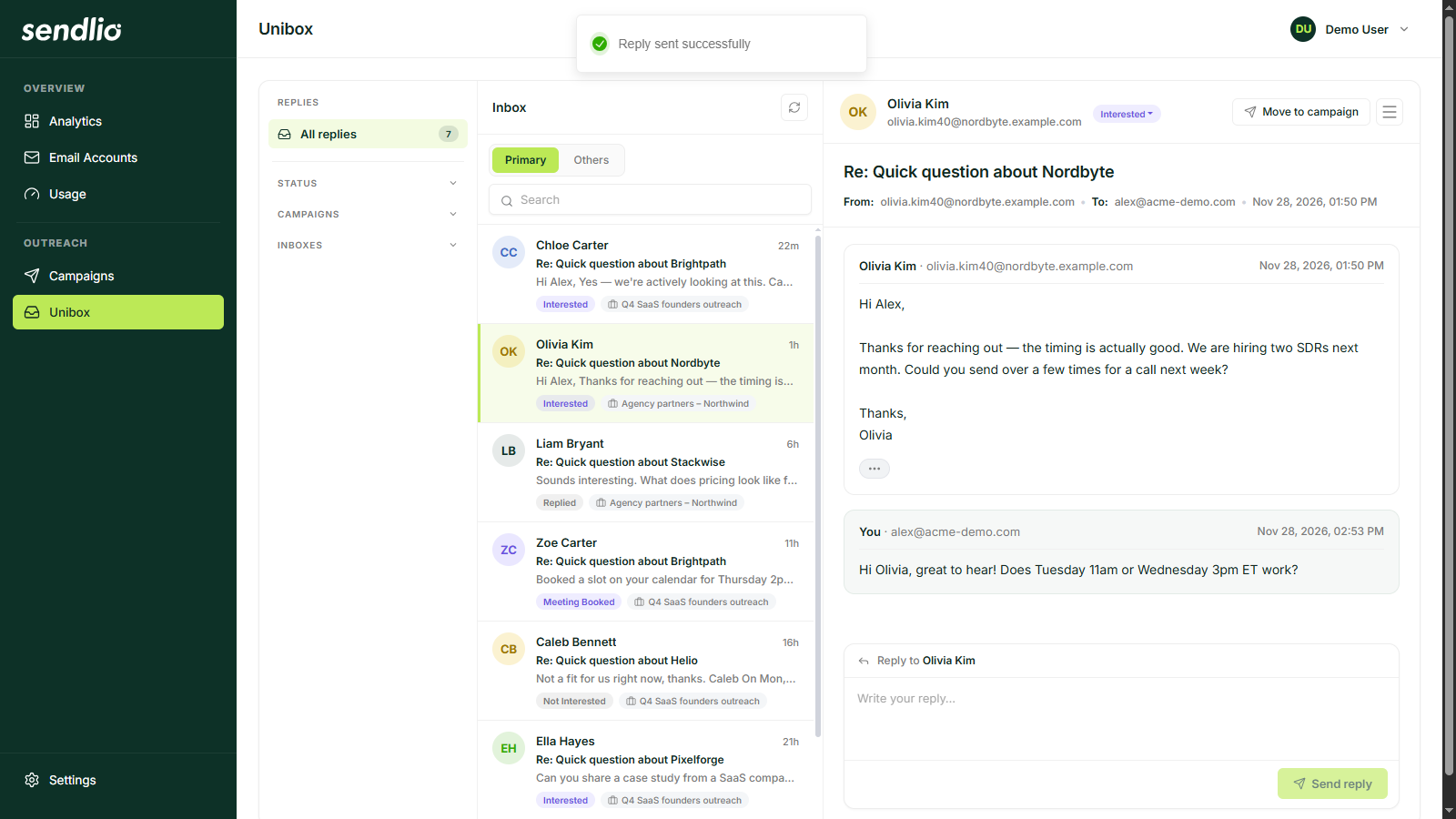
- Click Send reply. You’ll see “Reply sent successfully” and your message appears in the conversation as You · your inbox.
How your reply is sent
- From the same inbox that received the lead’s reply.
- In the same email thread, with “Re:” and the original subject, so it appears as a reply in the lead’s mailbox.
- As plain text: no formatting, attachments, CC or BCC.
- Without your signature — type your sign-off yourself.
Tip
Need to attach a file or add a colleague? Reply from your own mail app instead — the conversation is in your real mailbox too.
When the lead answers again, their new email appears as a new item at the top of the list.
Frequently asked questions
“No SMTP password is stored…” or “…could not be read. Reconnect that account.”
Go to Email Accounts, open the ⋯ menu on that inbox and choose Reconnect Account. Your typed reply stays in the box, so you can send it after.
“Failed to send reply”
The inbox couldn’t send. Check it on the Email Accounts page (red flame or connection error) and try again.