
Find replies: filters, search, Primary and Others
Narrow the list by status, campaign or inbox, and search by address or subject.
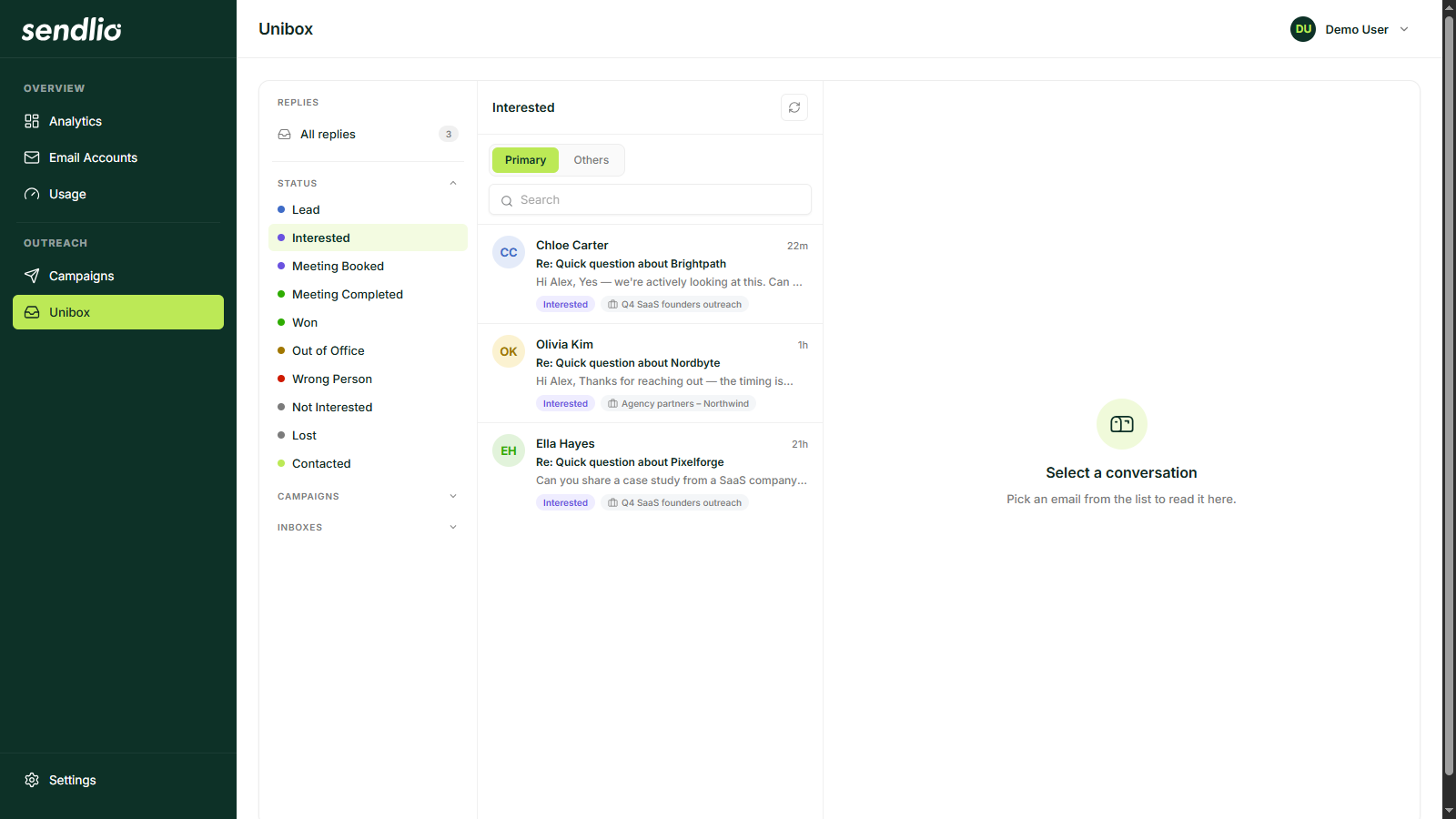
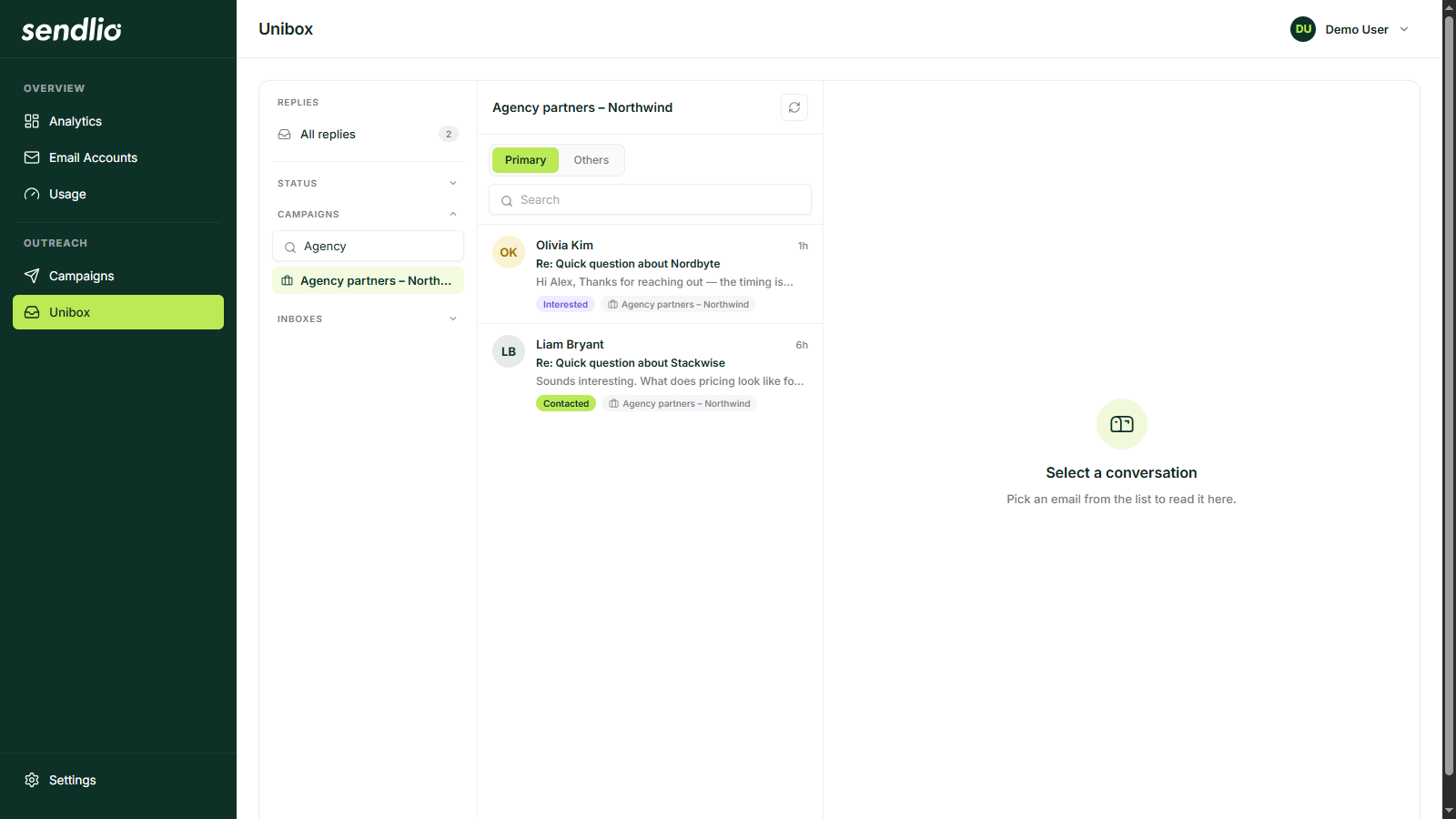
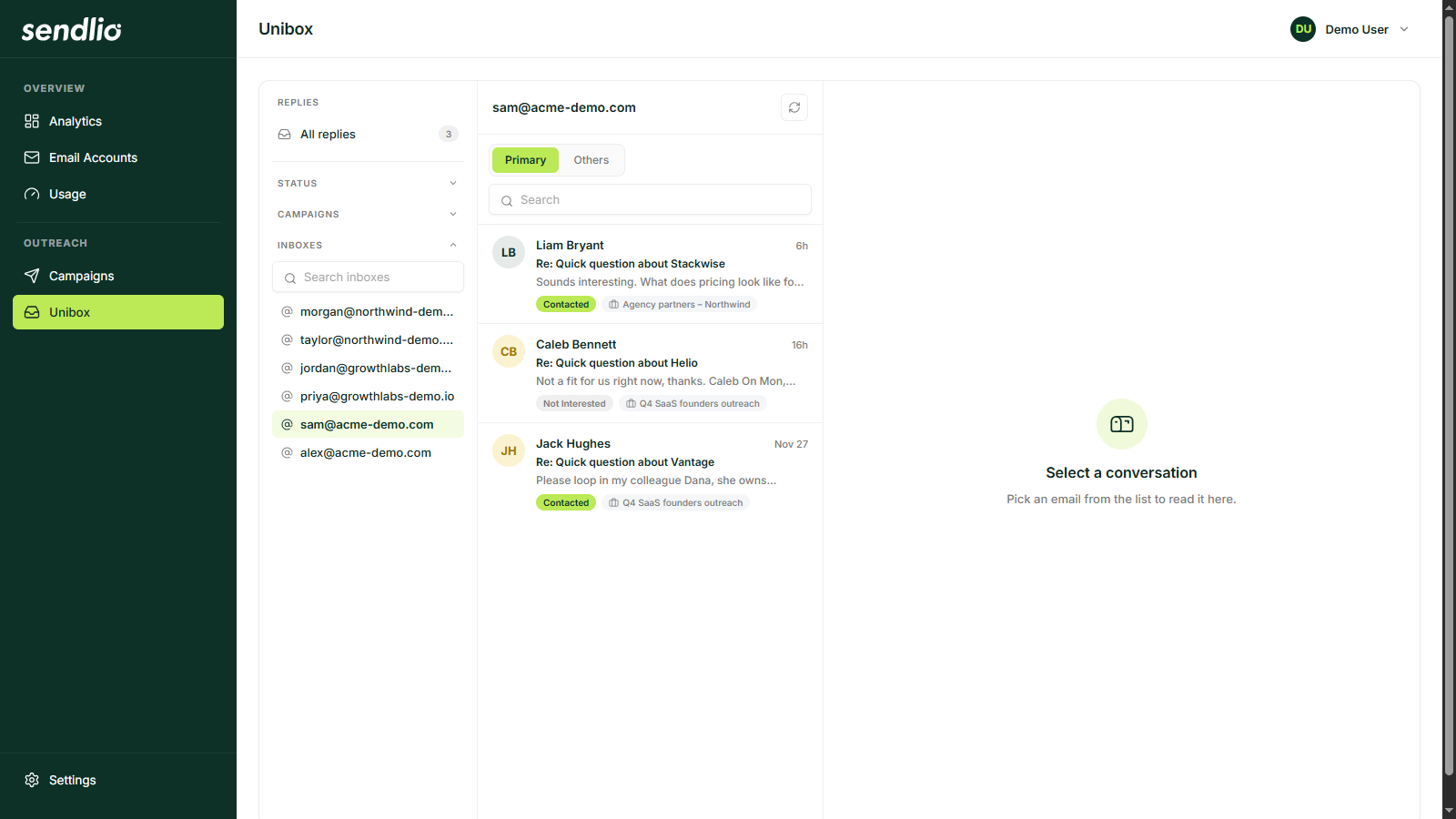
Filter by status, campaign or inbox
In the left panel, open Status, Campaigns or Inboxes and click an item. Campaigns and Inboxes have their own search box. One filter works at a time — picking a new one replaces the last. Click All replies to clear it.
Search
Type in Search above the list. It finds replies by the lead’s email address, your inbox address or the subject. It doesn’t search the text of the message.
Primary and Others
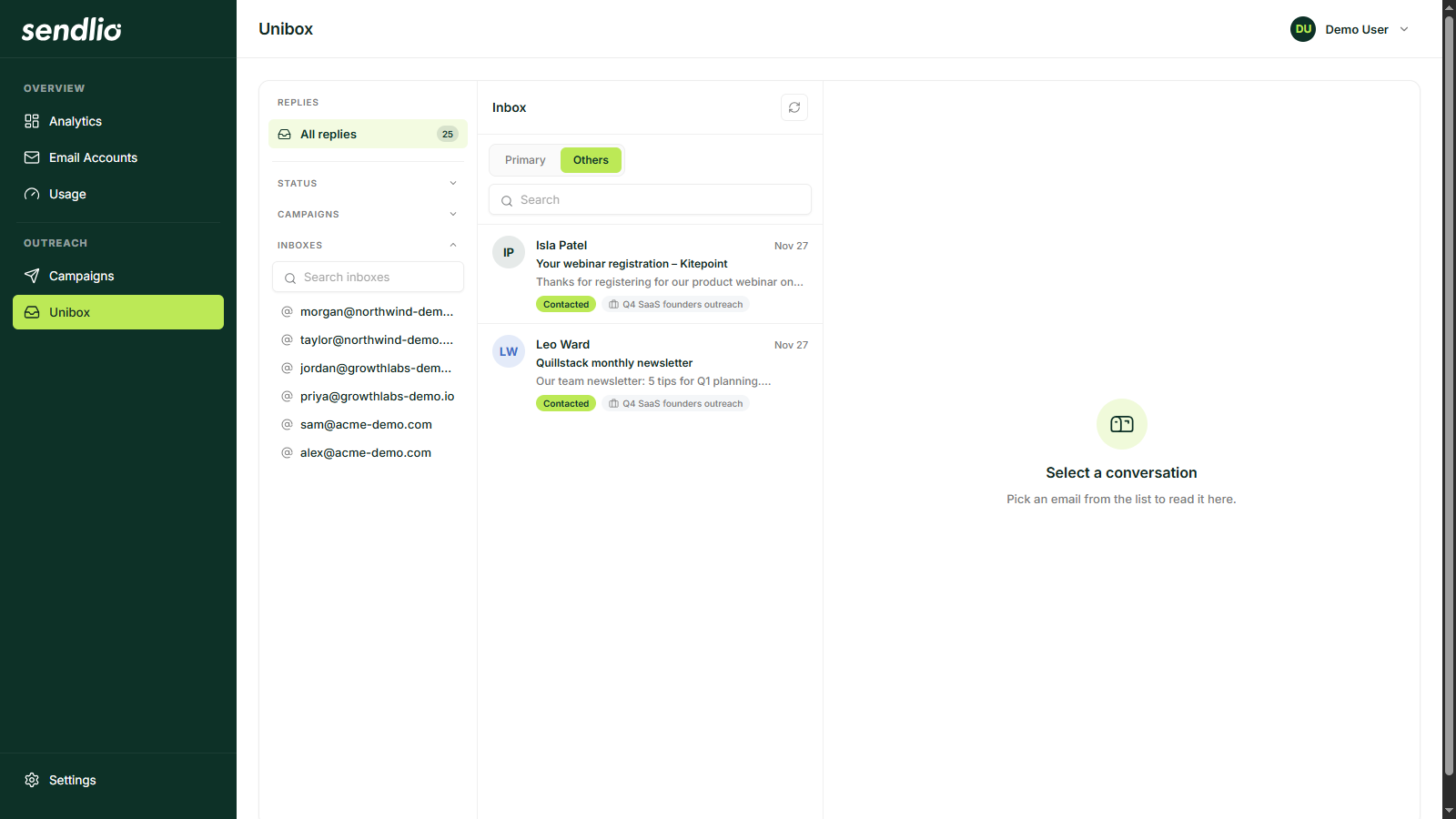
Primary holds real replies to your emails. Others holds emails from your leads that didn’t look like a reply to your campaign — for example a new email they started themselves. Check Others now and then so you don’t miss anything.
More replies and refreshing
The list shows 25 replies at a time — click Load more at the bottom for the next 25. Click the Refresh icon to fetch the newest replies.
Frequently asked questions
The number next to “All replies” is wrong.
It counts the replies loaded on screen so far, not your total. It grows as you click Load more.